iPhoneアプリ作成(11) 環境設定テーブル (グループテーブル)
Evernoteなどの環境設定画面は、ボタン、ラベル、テキストフィールド、テーブルなどが混在した画面となっている。
どのようにしたら、このような画面がつくれるのか?
ビューに、ボタンやテキストフィールドを張り付けるのはもちろん問題ないが、「テーブル」が張り付けられない。
テーブルは「ViewController」であり、UIViewではないためViewには追加できないようだ。
解説本を読んでも、このあたりの解説は見当たらない。 困ったーーー。
ふと図書館で立ち読みした解説本に「グループテーブル」「環境設定テーブル」などの言葉が... これか。
で、環境設定用の画面の作り方のポイントを整理してみた。
◆ポイント
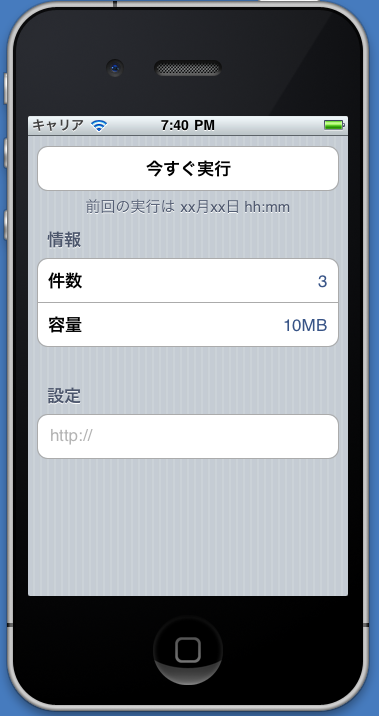
・「ボタン」に見えたのでは「ボタン」ではなく、「テーブルのセル」であった

・設定画面は、「UIViewContoroller」 でなく「UITableViewContoroller」 で作成する

・テーブルのスタイルは「UITableViewStyleGrouped」を指定する

・セクションのタイトルとフッターが指定できる
  タイトルに空白を指定すると、ボタンのように見える
  タイトル、フッターに各種情報を指定できる

・セルの中に、テキストフィールドなどの編集できる部品を追加できる

・IBでは作成することはできない。
◆サンプル画面
◆サンプルソース
@implementation config01TableViewController

-(id)init{
	self = [super initWithStyle:UITableViewStyleGrouped];
	if (self) {self.title = @"設定";}
	return self;
}

//グループの数
- (NSInteger)numberOfSectionsInTableView:(UITableView *)tableView {
    return 3;
}

//セクションあたりの行数
- (NSInteger)tableView:(UITableView *)tableView numberOfRowsInSection:(NSInteger)section {
	switch (section) {
		case 0: return 1;
		case 1:	return 2;
		case 2:	return 1;
		default: return 0;
	}
}
//セクションタイトル
- (NSString*)tableView:(UITableView *)tableView titleForHeaderInSection:(NSInteger)section{
	switch (section) {
		case 0: return @"";
		case 1: return @"情報";
		case 2: return @"設定";
		default: return @"";
	}
}
//セクションフッター
- (NSString*)tableView:(UITableView *)tableView titleForFooterInSection:(NSInteger)section{
	switch (section) {
		case 0: return @"前回の実行は xx月xx日 hh:mm";
		case 1: return @" ";
		case 2: return @"";
		default: return @"";
	}
}

//セクションあたりの行の高さ
- (CGFloat)tableView:(UITableView *)tableView heightForRowAtIndexPath:(NSIndexPath*)indexPath {
	int section = [indexPath section];
	switch (section) {
		case 0: return 44.0f;
		case 1: return 44.0f;
		case 2: return 44.0f;
		default: return 44.0f;
	}
}

//セルを生成する
- (UITableViewCell *)tableView:(UITableView *)tableView cellForRowAtIndexPath:(NSIndexPath *)indexPath {
	int row = [indexPath row];
	int section = [indexPath section];
	UITableViewCell *cell;
	NSString *CellIdentifier = @"Cell";

	switch (section) {
		case 0:
			cell = [tableView dequeueReusableCellWithIdentifier:CellIdentifier];
			if (cell == nil) cell = [[[UITableViewCell alloc] initWithStyle:UITableViewCellStyleDefault reuseIdentifier:CellIdentifier] autorelease];
			cell.textLabel.text = @"今すぐ実行";
			cell.textLabel.textAlignment = UITextAlignmentCenter;
			return cell;
		case 1:
			cell = [tableView dequeueReusableCellWithIdentifier:CellIdentifier];
			if (cell == nil) {
				cell = [[[UITableViewCell alloc] initWithStyle:UITableViewCellStyleValue1 reuseIdentifier:CellIdentifier] autorelease];
			}
			switch (row) {
				case 0:
					cell.textLabel.text = @"件数";
					cell.detailTextLabel.text = @"3";
					break;
				case 1:
					cell.textLabel.text = @"容量";
					cell.detailTextLabel.text = @"10MB";
					break;
				default:
					break;
			}
			return cell;
		case 2:
			cell = [tableView dequeueReusableCellWithIdentifier:CellIdentifier];
			if (cell == nil) cell = [[[UITableViewCell alloc] initWithStyle:UITableViewCellStyleDefault reuseIdentifier:CellIdentifier] autorelease];
			UITextField *field = [[[UITextField alloc]init]autorelease];
			field.frame = CGRectMake(20,10,300,30);
			field.borderStyle = UITextBorderStyleNone;
			field.delegate = self;
			field.placeholder = @"http://";
			[cell addSubview:field];

		default:
			return cell;
	}
}
//キーボードの消去
-(BOOL)textFieldShouldReturn:(UITextField*)textField{
	[textField resignFirstResponder];
	return YES;
}

//セル選択時の応答処理
- (void)tableView:(UITableView *)tableView didSelectRowAtIndexPath:(NSIndexPath *)indexPath {
	//省略
}
